Table Reservations in BiteTwo: Three Ways to Let Guests Book
Who may book a table in BiteTwo: only your staff, guests with a code, or everyone online. How to choose the right mode for your restaurant.
 BiteTwo TeamNovember 10, 20264 min read
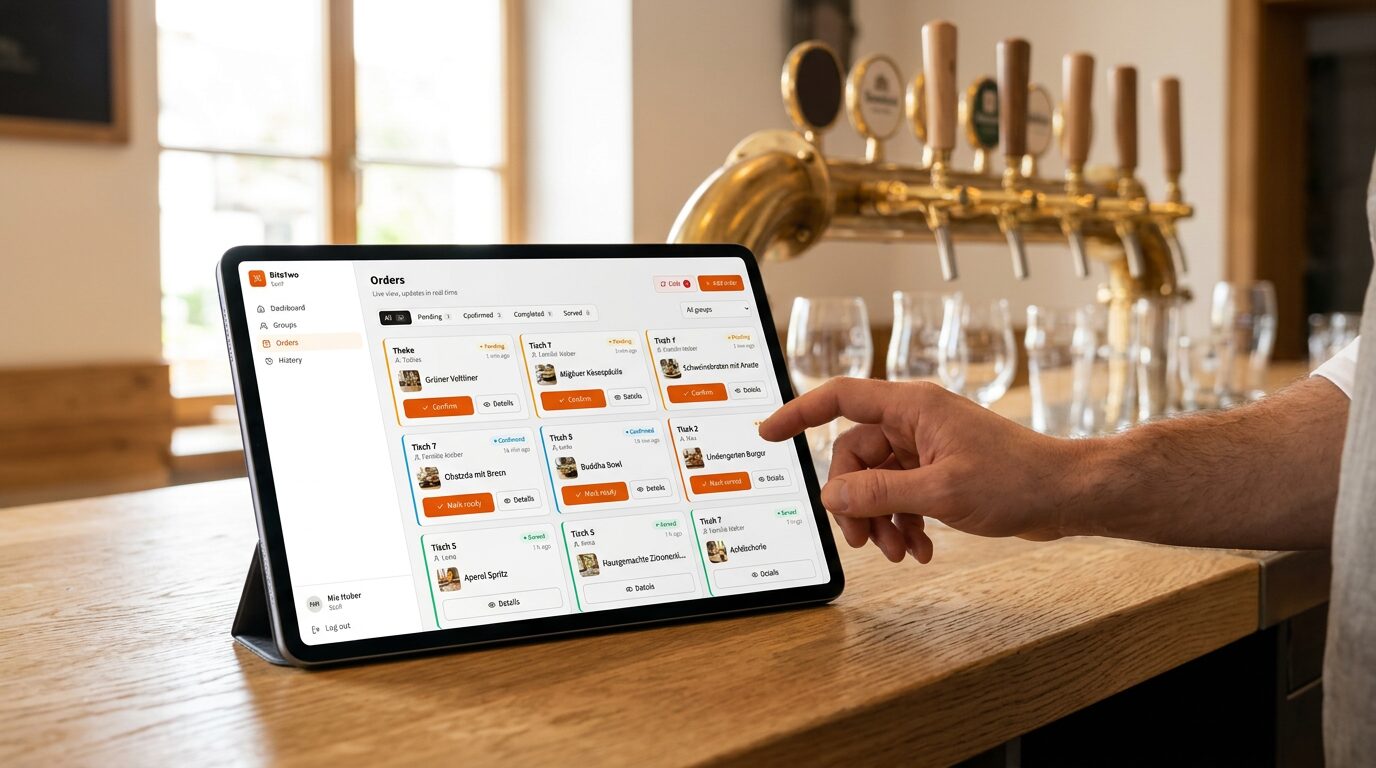
BiteTwo can take table reservations next to orders and waiter calls. Reservations are an optional module: they stay off until you turn them on. The most important setting is who may book, and you have three choices.
Turning reservations on
Go to Settings, section Reservations, and switch on Use reservations. You can turn the module off again at any time. Existing reservations are kept.
Choose who may book
| Mode | Who books | Good for |
|---|---|---|
| Staff only | Your team enters every booking | Starting out, or keeping the phone |
| Guests with a code | Only guests who have a code from you | Regulars, events, a soft launch |
| Everyone online | Anyone, on your booking page | Restaurants that want to be bookable from their website or Google profile |
You can change the mode at any time.
Staff only
Your team enters every reservation, for example from phone calls or from guests who ask at the counter. Guests never see a booking page, and nothing about reservations is published. This is the safest start: you get the whole planning view (timeline, floor plan and list) without opening anything to the public.
Guests with a code
Only guests with a code can book online. You create codes on the Reservations page, under Codes. For each code you set:
- a label, for example "Regulars" or "Wedding Smith",
- how many bookings it allows: one, a few or unlimited,
- an optional valid until date.
Give the code to the people you want to invite, or send them the link, which fills it in for them. A booking with a code is confirmed at once, because the code already tells you who the guest is. When a code is used up or expired, it stops working, and you can switch any code off at any time.
Everyone online
Anyone can book on your public booking page. The page is linked from your public menu, so guests find it easily. Guests choose the party size, a day and a start time, then enter their name and email address, and they confirm the booking from an email.
If you want to check every booking yourself, tick Confirm every online booking myself. New bookings then arrive as requests, and the guest gets the confirmation only when your team accepts it.
What guests see
In any mode you decide how much of your floor plan guests see. By default they only choose the time and the party size, and BiteTwo picks a fitting table. You can also let them choose a floor or room, or let them pick a table on your floor plan. Your plan stays private unless you show it.
Which mode to choose
- Start with staff only while you learn the planning view.
- Add guests with a code for regulars and events, once you want guests to book themselves.
- Switch to everyone online when you want online bookings for everyone, and keep the confirmation option on if you want to check each request.
Opening hours, durations and limits are set in the Booking times section of the same settings page.